
Motus Axis
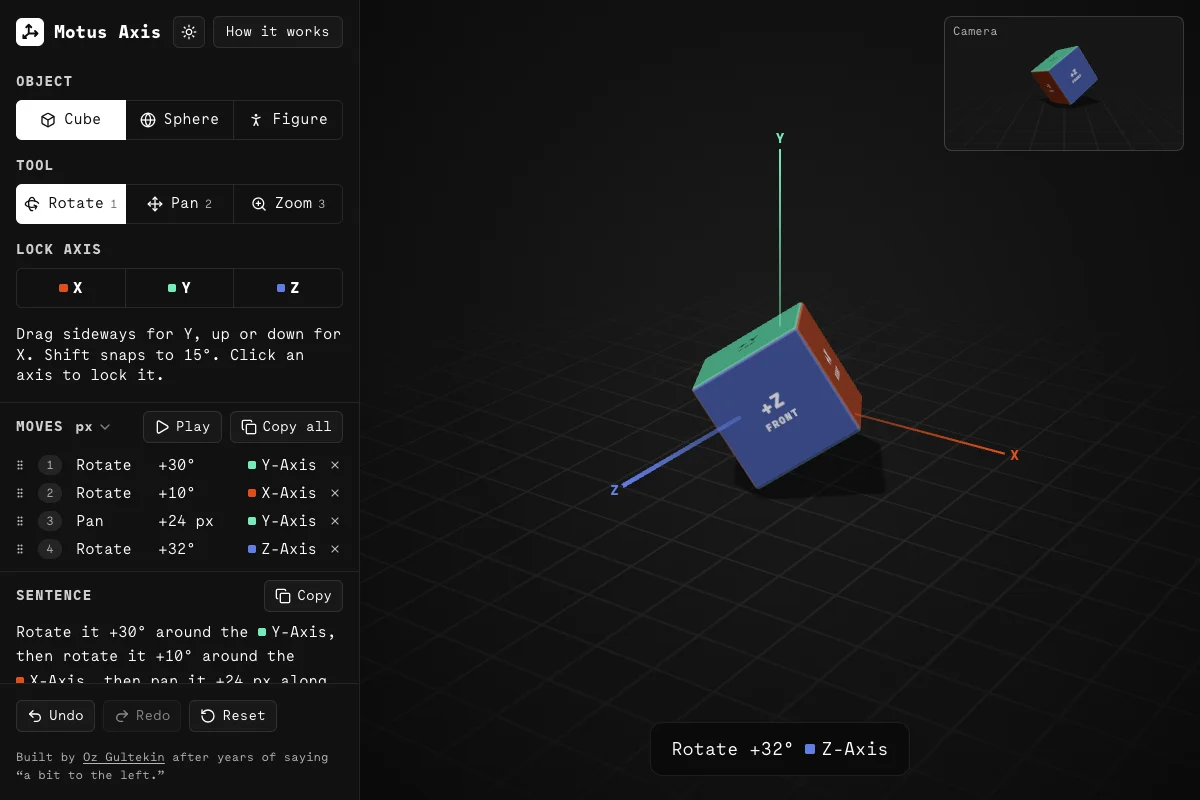
Motus Axis is a small 3D viewport with a cube, a sphere or a wooden figure. Rotate it, pan it or zoom in, and when the movement stops it states the change in plain words, such as Rotate -125° X-Axis or Pan +60 px Y-Axis. A camera frame in the corner shows the result as a fixed front shot. Every move lands in an ordered list and in a single sentence, each ready to copy.
What problem does it solve?
A 3D move is easy to make with a mouse and hard to describe. “Turn it a bit to the left” could mean three different axes. Motus Axis gives every move a precise name, the way a 3D app would log it, so you can repeat it, write it down or hand it to someone else.
How it works
Pick a cube, a sphere or a figure, then Rotate, Pan or Zoom, and drag it. A sideways drag works on one axis and an up or down drag on another. Click an axis line to lock it, or drag from the line to move along it straight away. When you let go, the readout states the move, such as Rotate -125° X-Axis, and a click on it copies the line. Scrolling and arrow keys count as one move once you pause. Pick pixels, percent or units for distances. Hold Shift to snap to 15°, half a unit or 10%. Every move lands in a numbered list, and the same moves read as one sentence below it, such as Rotate it +30° around the Y-Axis, then pan it +60 px along the X-Axis. Drag a move by its handle to change the order, or delete it, and the object replays the rest. Play runs the whole sequence from the start, one move at a time. A Camera frame in the corner shows the same pose from a fixed front camera, the way the result would look in a shot. Undo, Redo and Reset cover every change.
Whom it’s for
Anyone who needs to put a 3D change into words, and anyone learning which way X, Y and Z turn.
Tech
The 3D view runs on three.js, with real lighting and soft shadows. The cube, the sphere and the wooden figure are built in code, and the axis colours are checked for colourblind separation in both light and dark mode.
Frequently asked questions
What does it do?
It turns a 3D move into a short line of text. Drag the object, let go, and it says the tool, the amount and the axis, as in Rotate +30° Y-Axis.
How do I rotate around Z?
Click the blue Z axis in the viewport, or use the Z button or the Z key, then drag sideways. You can also drag straight from the axis line. Without a lock, a sideways drag rotates around Y and an up or down drag around X.
Which way is positive?
X points right, Y points up and Z points toward you. A positive rotation turns counterclockwise when you look down that axis toward the object.
Which units does Pan use?
Pixels by default. One unit is 120 px, the width of the cube and the sphere. The small menu next to Moves switches to a percentage of a unit or to whole units.
Can I watch the moves again?
Yes. Press Play and the object goes back to where it started, then makes each move in order while the list highlights it.
Does the order of moves matter?
Yes. Rotating around X and then Y lands somewhere different from Y and then X. Drag a move by its handle, or use Space and the arrow keys on the handle, to change its place and the object replays the new order.
Can I fix a mistake?
Yes. Delete any move from the list and the object replays the others. Undo and Redo work with Cmd+Z and Shift+Cmd+Z on a Mac, or Ctrl+Z and Ctrl+Y elsewhere.
Can I move something other than a cube?
Yes. Pick a sphere or a wooden figure under Object. The sphere keeps the cube's six coloured, labelled sides and the figure faces you, so a turn is easy to read on each of them.
What is the Camera frame?
A fixed front camera in the corner of the view. It shows the same pose as a framed shot with the floor for reference, so a pan or a zoom reads as a change in the picture rather than a move in empty space.
Is there a light mode?
Yes. It follows your system setting, and the sun and moon button beside the name switches it. The axis colours change with it so they stay colourblind safe on a light background.
Does it work without a mouse?
Yes. Focus the viewport and use the arrow keys, 1 to 3 for the tools and X, Y or Z to lock an axis. On a phone, drag with one finger and pinch to zoom.