

Gridget Bardot
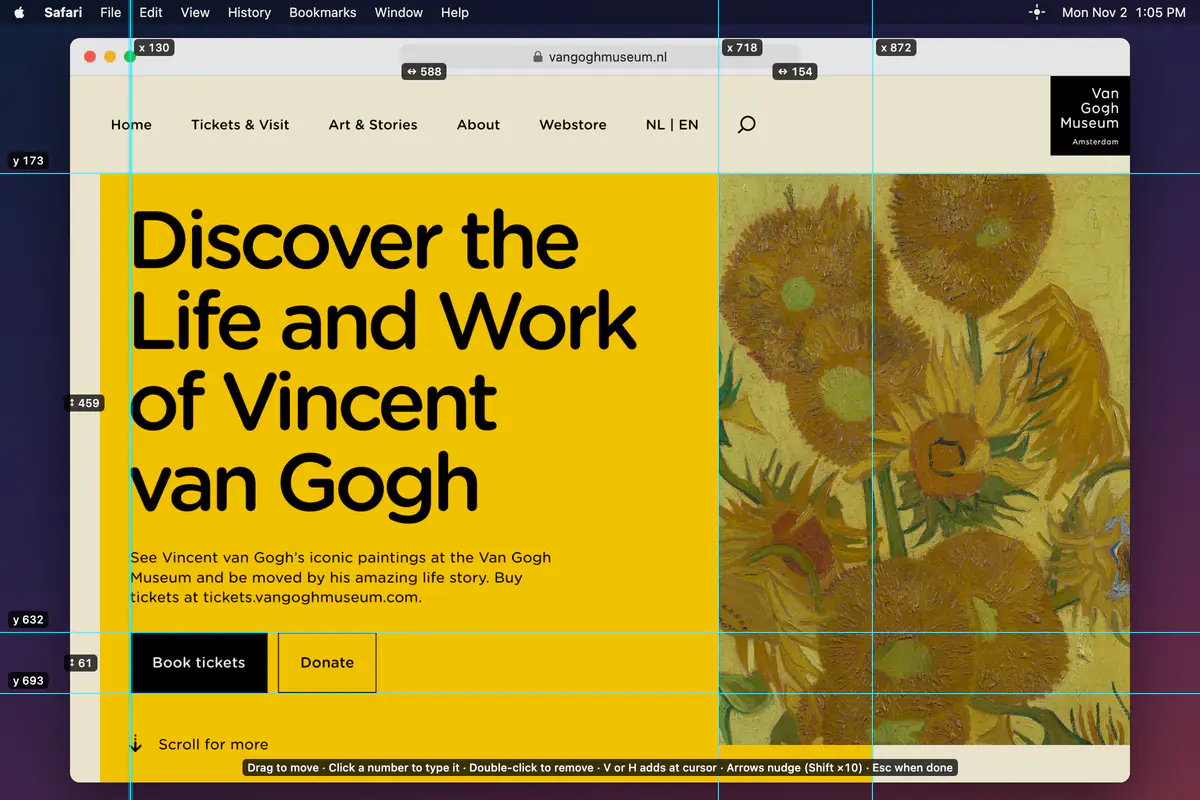
Gridget Bardot is a Mac menu-bar app that draws thin guide lines over everything on screen, including the menu bar, the Dock and full-screen apps. Add guides at the pointer with a shortcut, spread several evenly, or lay out a grid by width, columns, margin and gutter. In edit mode you can drag them, nudge them or type an exact position.
What problem does it solve?
Checking alignment on a live screen usually means taking a screenshot into a design tool or trusting your eye. Gridget Bardot puts the guides on the screen itself, above every app, so you can see at once whether an edge, a column or a baseline lines up.
How it works
Gridget Bardot lives in the menu bar. Press ⌃⌥⌘V or ⌃⌥⌘H to drop a vertical or horizontal guide at the pointer. Add Guides spreads a number of guides evenly across a range, or lays out a grid by width, columns, margin and gutter, centred on the screen.
Edit mode (⌃⌥⌘E) shows each guide’s position from the top-left corner and the gap between neighbours. Drag a guide, nudge it with the arrow keys, or click a number and type an exact value. Outside edit mode the guides let every click through. They come in 16 colours and stay where you left them after a restart.
Whom it’s for
Designers and developers who want to check alignment in a browser, a prototype or any app, without a screenshot or a design tool in between.
Tech
Native Mac app built in Swift for macOS 14 and up, on Apple silicon and Intel. It draws on transparent windows above everything else and needs no permissions. The build is not notarized, so the first launch needs manual authorization. Free to share under CC BY-NC-ND 4.0.
Frequently asked questions
What is Gridget Bardot?
A native Mac menu-bar app that draws guides and layout grids over your whole screen. Use it to check whether things line up in a browser, a design tool or any other app.
How do I add guides?
Press ⌃⌥⌘V for a vertical guide or ⌃⌥⌘H for a horizontal one at the pointer. Add Guides in the menu spreads several evenly across a range or lays out a grid by width, columns, margin and gutter.
Can I set an exact position?
Yes. In edit mode (⌃⌥⌘E) each guide shows its position and the gap to its neighbour. Click a number and type a new value, drag the guide, or nudge it with the arrow keys.
Do the guides get in the way?
No. Outside edit mode, clicks pass straight through them, and ⌃⌥⌘G hides them all.
Does it need any permissions?
No. It asks for no permissions and has no network access.
Is it free?
Yes. Download it from GitHub Releases. It is free to share under CC BY-NC-ND 4.0.